Bing Image Editor
Bing Image Editor
Transform your images with Bing's powerful AI technology. Upload photos, select a size, and provide prompts—our AI will create stunning results for you.
No watermarks, free creation, and high resolution.
We have no association, endorsement, or connection with Microsoft or Bing.

Edit Your Images with Bing
Upload your images and provide detailed prompts for Bing's AI to create your desired result
Photo Editing Examples
See what our AI can create. Click on any example to use its description as a starting point.
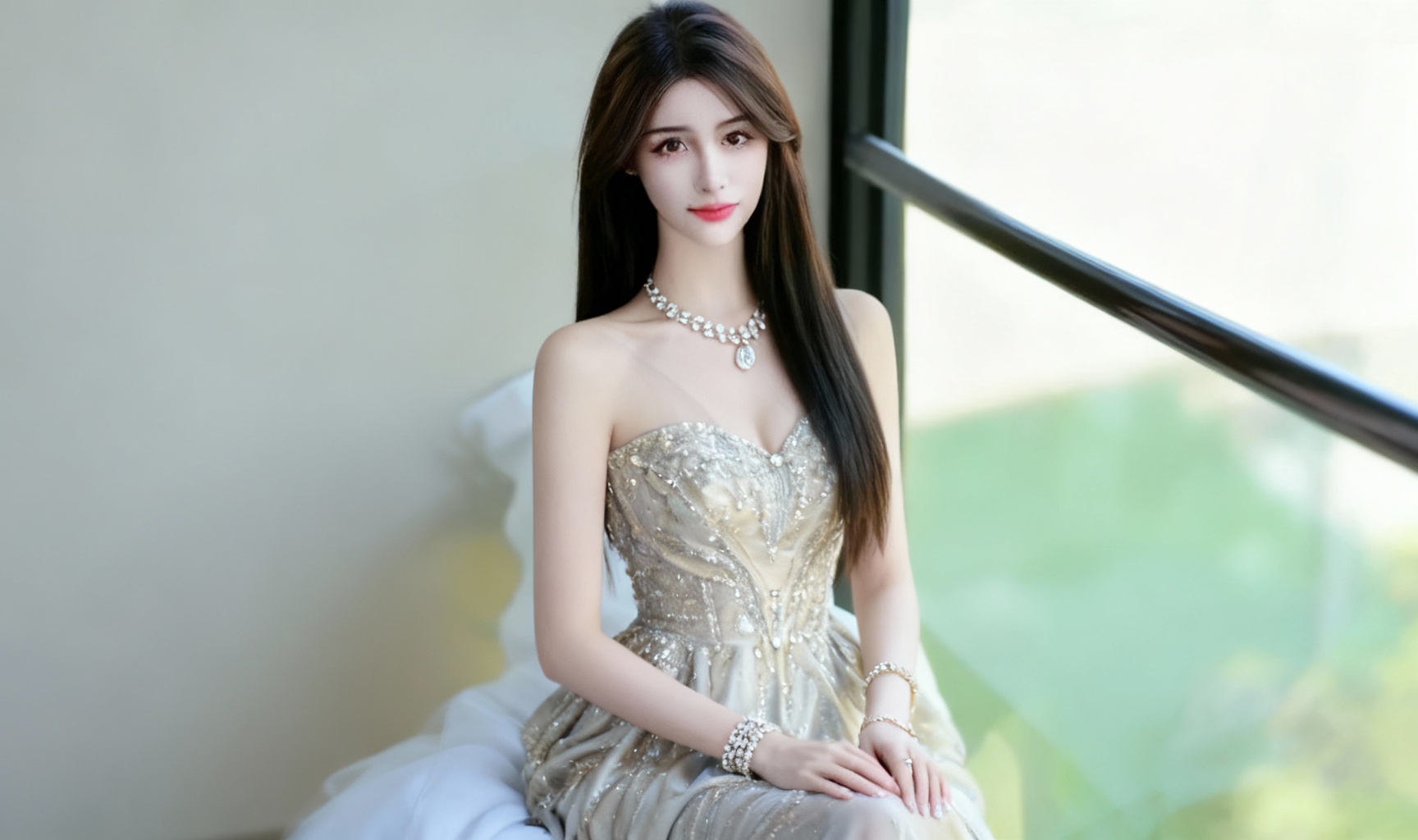
Fashion Transformation
Transform the outfit of the person in the main image to a stylish evening dress with elegant accessories and subtle background enhancement.
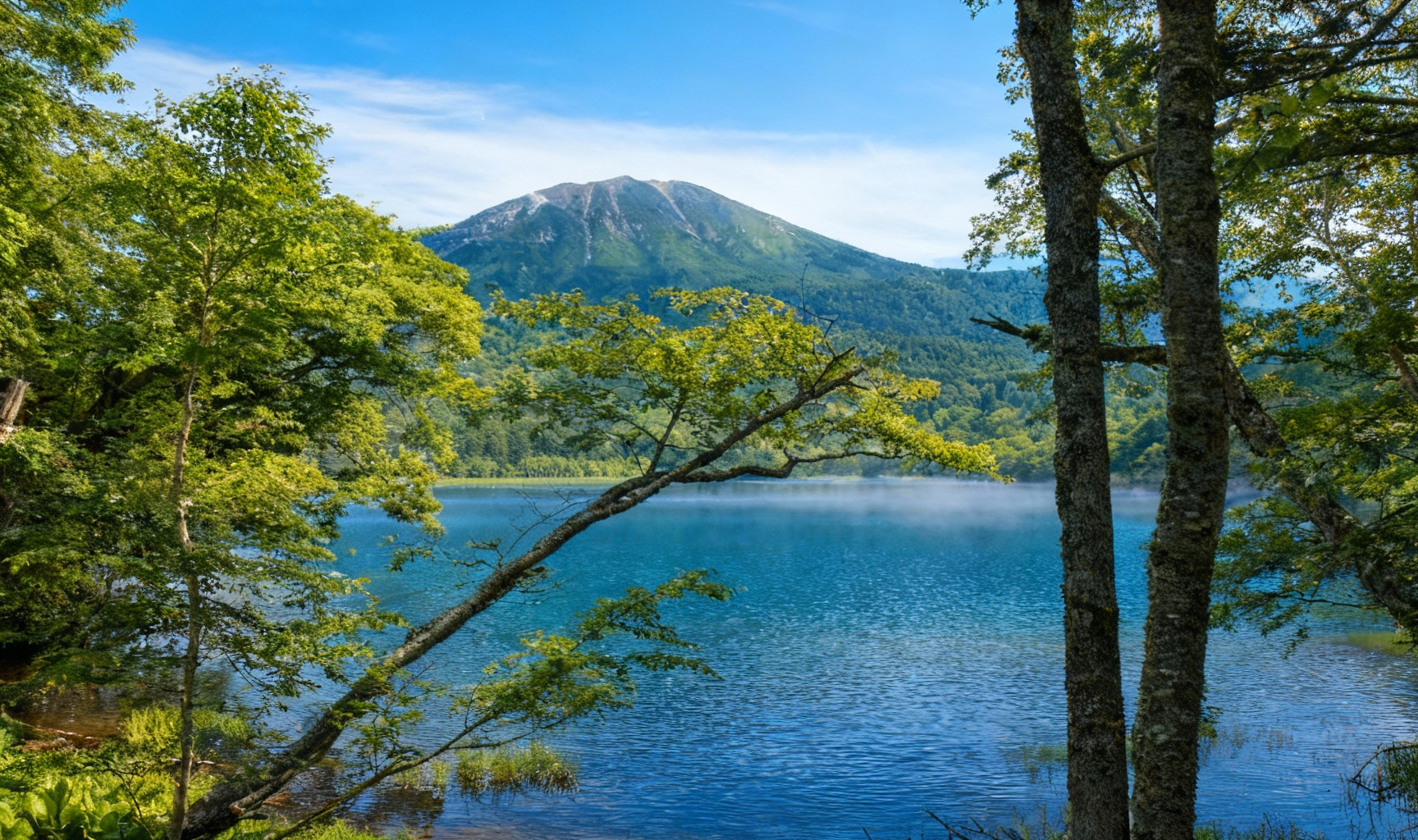
Nature Enhancement
Enhance the colors and lighting of the landscape photo, add subtle cloud and mist effects, and improve overall image sharpness while maintaining natural appearance.
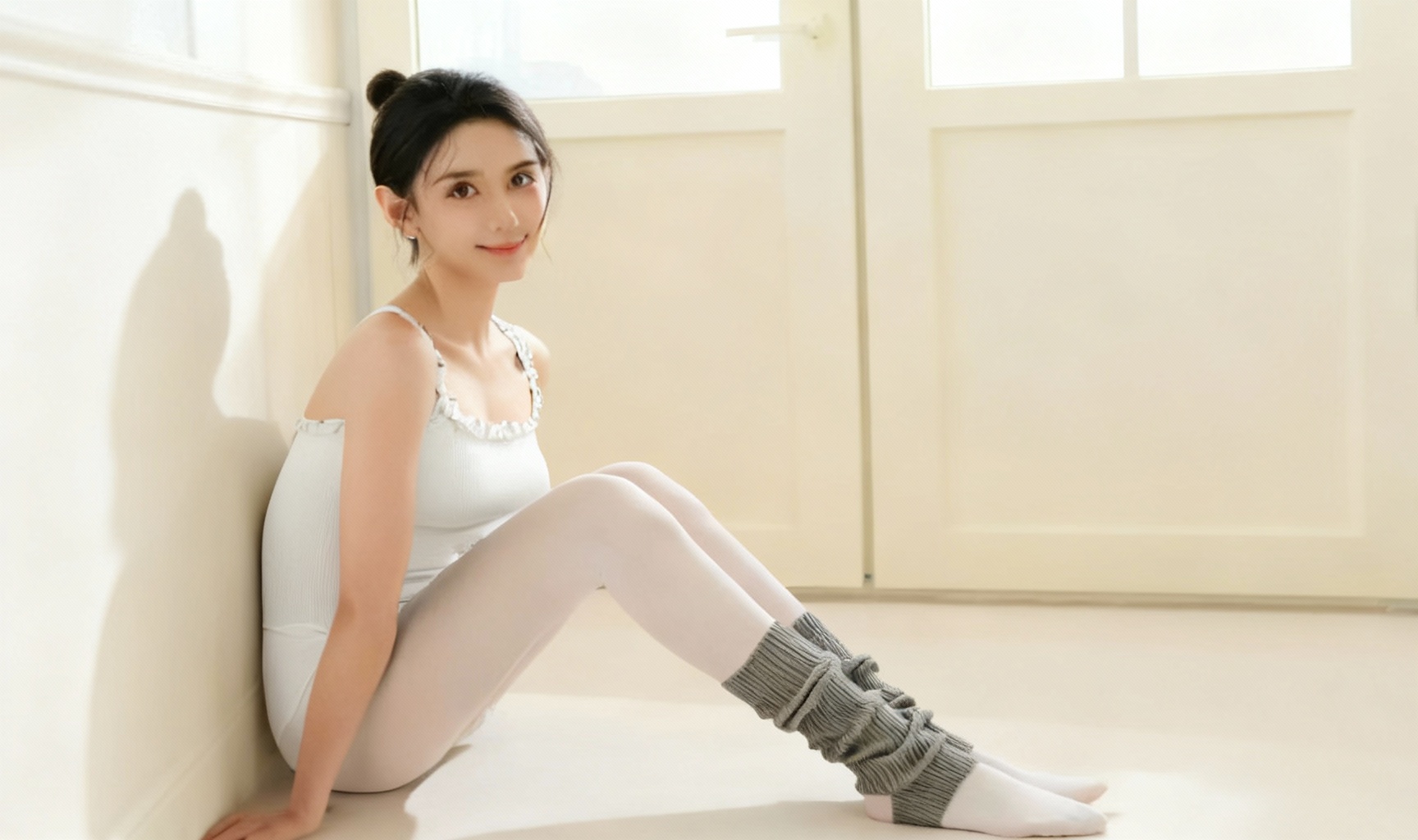
Portrait Retouching
Gently retouch the portrait photo, improve skin tone and texture, enhance facial features while maintaining natural look, and adjust lighting for professional appearance.
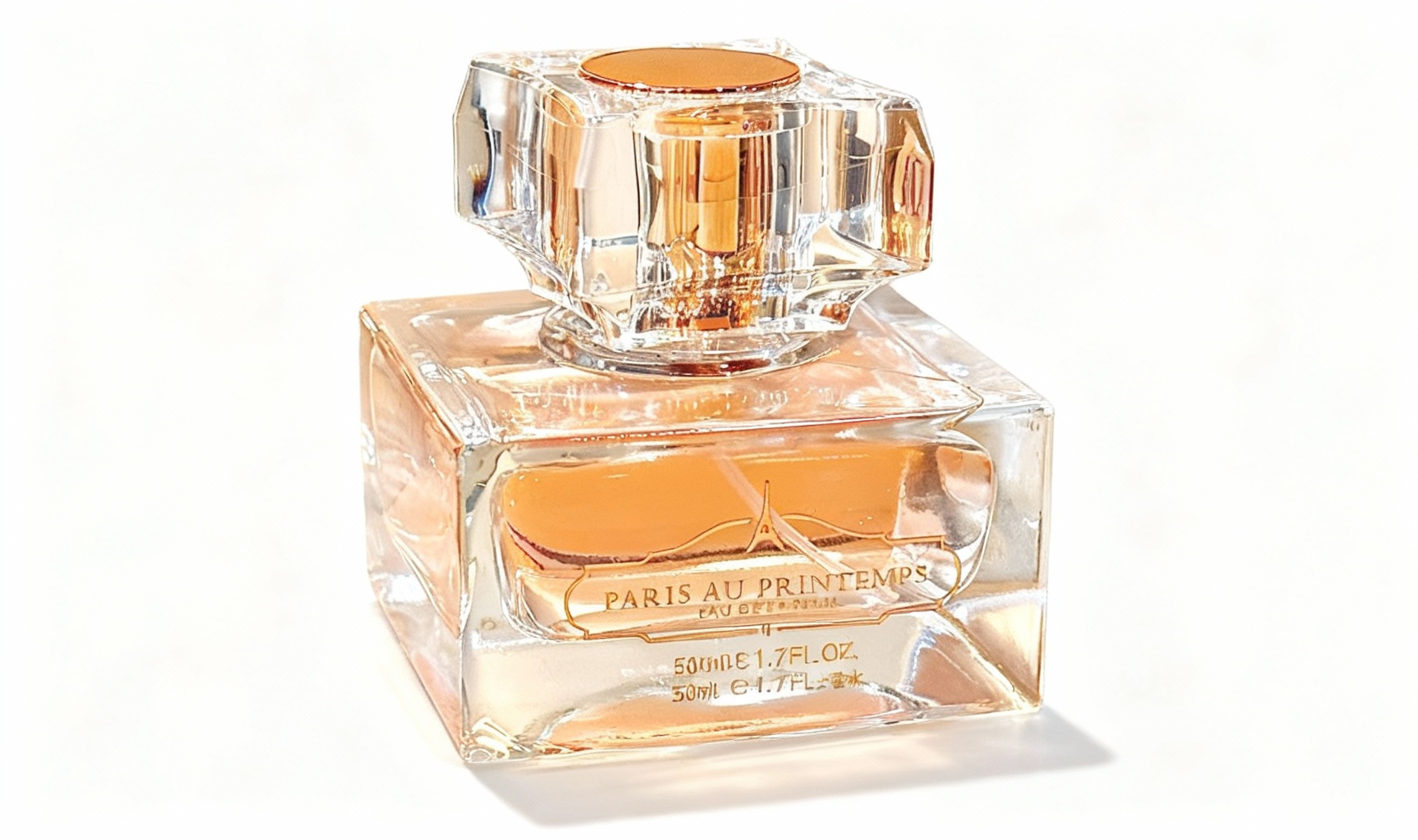
Product Enhancement
Remove background from the product photo, enhance colors and details, add subtle shadows for depth, and prepare for e-commerce use.
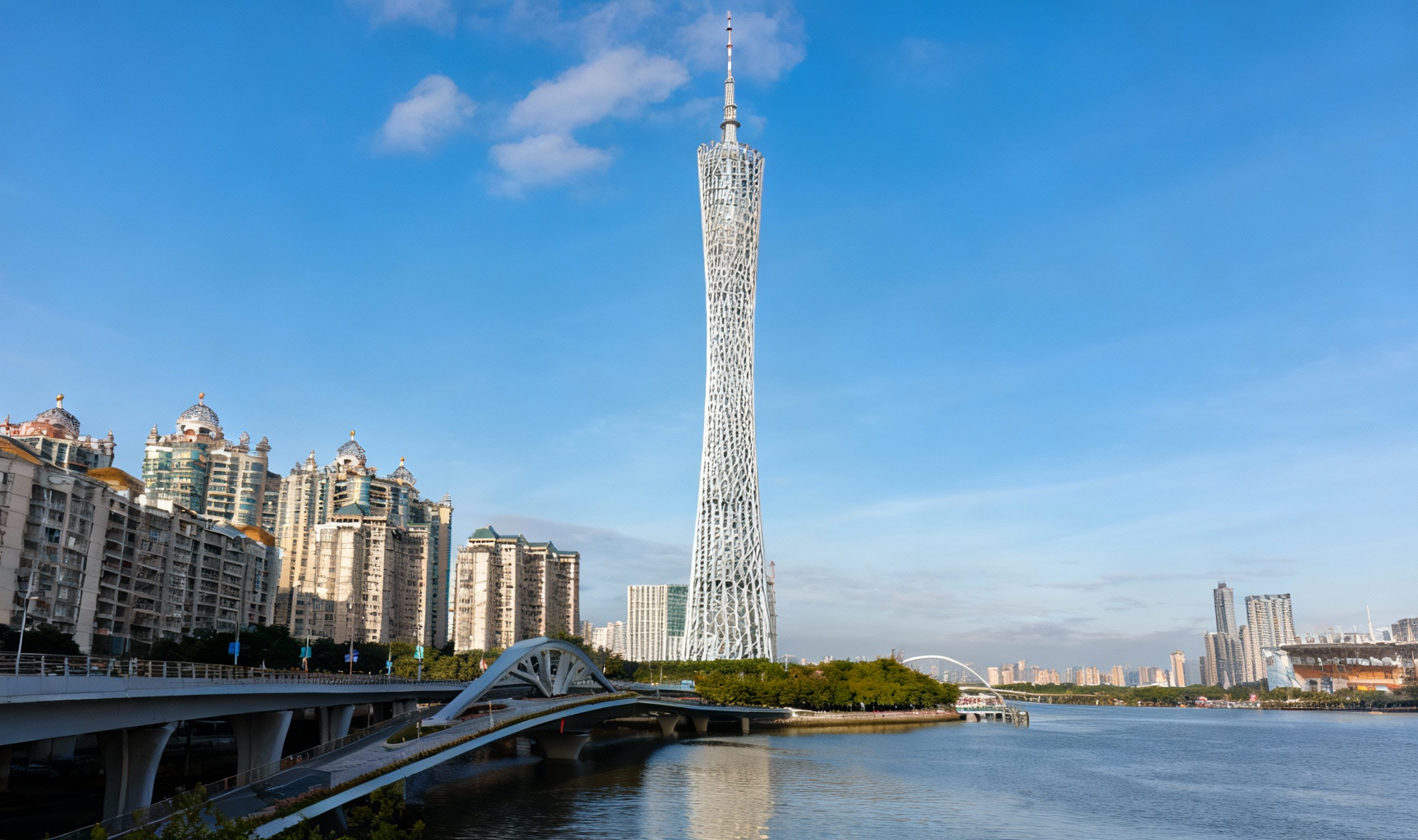
Architecture Edit
Straighten architectural lines, adjust perspective, enhance building details, and balance the sky exposure in this urban photography.
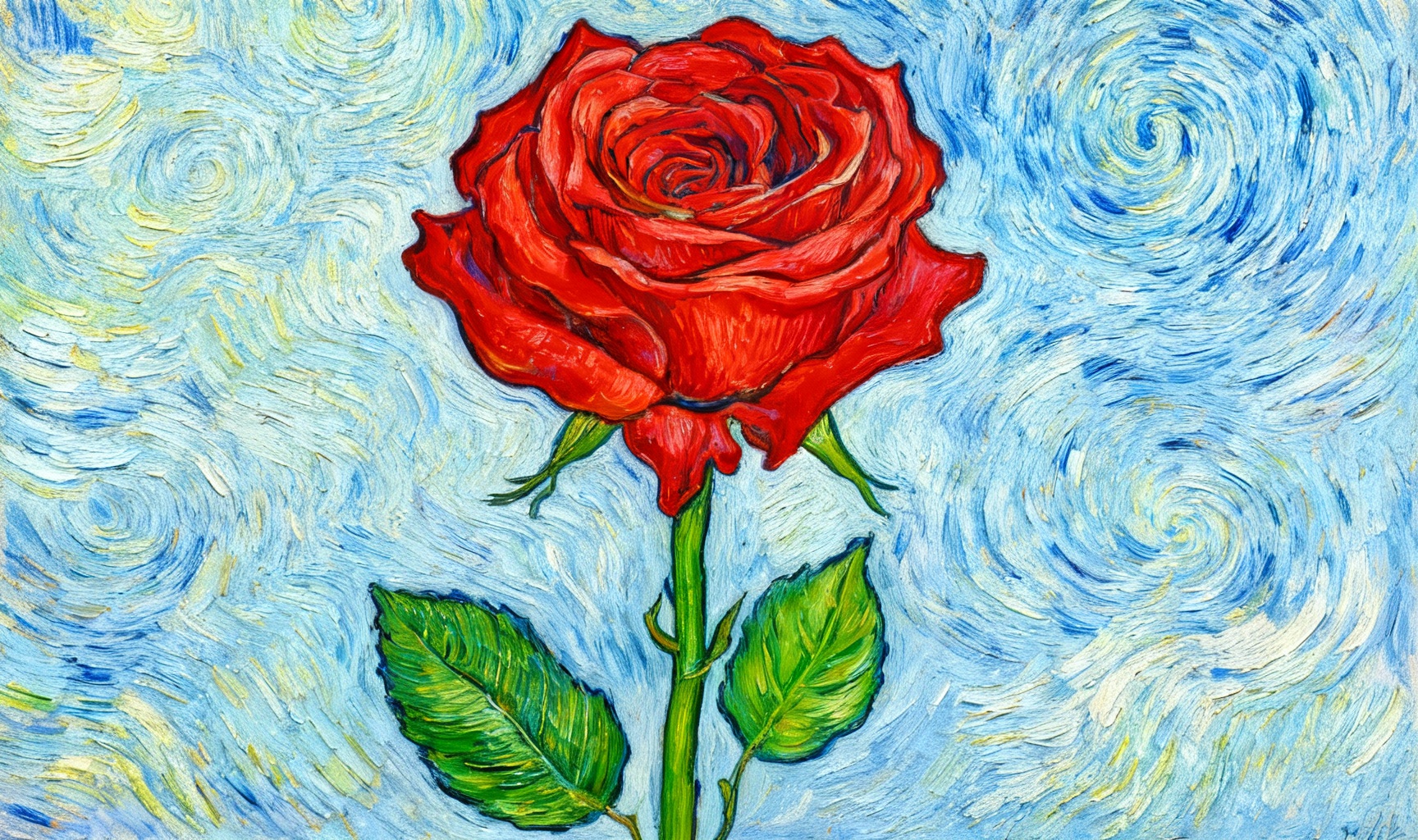
Artistic Style Transfer
Apply a Van Gogh style artistic filter to the image while preserving the original composition and important details.
Powerful Photo Editing Features
Our AI-powered image editor offers a wide range of capabilities to transform your photos with professional quality.
AI-Powered Editing
Advanced artificial intelligence analyzes your images and instructions to create professional-quality results.
Multi-Image Support
Upload up to 4 images to combine elements and create complex compositions with seamless integration.
Style Transfer
Apply artistic styles, filters, and visual effects to transform your images into stunning works of art.
Fast Processing
Get your edited images quickly with our optimized processing pipeline, typically within 60 seconds.
Precise Control
Provide detailed instructions to guide the AI and achieve exactly the result you envision.
Secure Processing
Your images are processed securely and deleted after editing to protect your privacy.
Simple Image Editing Process
Transform your images in just 3 easy steps
Upload Your Images
Select and upload up to 4 images you want to edit or combine.
Provide Instructions
Describe in detail what changes you want to make to your images.
Get Your Results
Our AI processes your request and delivers the edited images quickly.
User Stories
See how people use Bing Image Editor in their daily lives
Frequently Asked Questions
All information about our AI image editor, online photo editing and image processing tools
What can AI image editor do?
+Our AI-powered online Bing Image Editor offers professional-grade photo editing capabilities comparable to desktop software, making it an excellent online Photoshop alternative for users who need powerful image processing without installing heavy software. You can perform advanced photo editing tasks such as background removal, object deletion, photo retouching, color correction, and image enhancement, including:
- Image content editing: Modify image content based on text prompts
- Background processing: Remove or replace image backgrounds
- Element addition: Add various elements to images
- Style transfer: Convert images to different artistic styles
- Color adjustment: Optimize image color, brightness, contrast, etc.
- Text addition: Add text to images
- Special effects application: Apply various effects to images
Unlike traditional Photoshop, this tool doesn't require complex operation skills. Anyone can easily achieve professional-level editing results through text prompts.
How does AI photo editor compare to Photoshop?
+Our AI-enhanced image editor combines the powerful features of traditional photo editing tools with artificial intelligence to simplify complex tasks. While offering many features similar to desktop Photoshop alternatives, our online editor excels at AI-driven tasks such as automatic background removal, intelligent object detection, style transfer, and one-click image enhancement. This makes professional photo editing easier for users of all skill levels, without requiring extensive photo editing knowledge.
How to retouch photos like a professional?
+To achieve professional photo retouching results, start with high-quality source images, use our AI photo editor for precise adjustments, and focus on maintaining a natural appearance. Our tools offer advanced image editing features such as skin smoothing, blemish removal, teeth whitening, and portrait enhancement. Remember, moderate adjustments usually produce the most professional results in image processing.
How to batch edit multiple photos?
+Currently, this AI image editor does not support batch processing functionality. Since each image has different content and editing needs, AI needs to analyze and process each image individually to achieve the best results. You need to upload images one by one for editing.
We plan to add batch processing functionality in future versions, which will allow you to apply consistent edits to multiple photos simultaneously, including batch resizing, format conversion, watermark addition, color correction, and image enhancement tasks. This will be particularly useful for photographers, marketers, and businesses that need to process large numbers of images.
What file formats does AI image editor support?
+Our image editor supports all major image formats, including JPG, PNG, WEBP, TIFF, and GIF. You can upload images in these formats and export edited photos with various quality settings. For professional image editing needs, we also support high-resolution export and preserve transparency when processing PNG files.
How to improve photo quality with AI?
+Our AI image enhancement technology automatically analyzes your photos and applies intelligent corrections to improve brightness, contrast, color balance, sharpness, and overall image quality. Unlike manual photo editing, our AI can identify the best adjustments for each specific image, saving you time while achieving professional results. This makes our tool particularly effective for quick image enhancement needs.
Is AI photo editor easy for beginners?
+Absolutely! Our online image editor is designed to be beginner-friendly while still offering advanced features for experienced users. The intuitive interface and AI-driven tools make photo editing accessible to everyone, regardless of their technical skill level. Beginners can start with simple image editing tasks and gradually explore more advanced features as they become more familiar with image processing concepts.
What is AI image editor used for?
+Our online Bing Image Editor excels in various image editing scenarios, including portrait retouching, product photography enhancement, social media content creation, travel photo editing, event photography post-processing, and business presentation graphics. Whether you need to edit travel photos, create marketing materials, or enhance e-commerce product images, our tool provides the necessary photo editing features for all these scenarios.
How to edit portrait photos?
+Our AI-powered online image editor includes professional tools for different types of photos. For portrait photography, you can use skin smoothing, facial enhancement, and background blur effects. For landscape photos, our sky replacement, color correction, and horizon alignment tools will help you achieve amazing results. Each image editing scenario has specialized features to meet specific needs.
Can I create social media images?
+Absolutely! Our online Bing image editing tool is perfect for creating social media images, providing predefined sizes for all major platforms like Instagram, Facebook, Twitter, and LinkedIn. You can use text overlays, filters, and graphic elements to create engaging social media visuals that maintain a consistent visual identity.
Steps:
- Upload the image you want to edit
- Describe the social media platform requirements and the effects you want in the editing prompt, such as: "Create a square image suitable for Instagram, add the text 'Happy Weekend' and related emojis, using a bright color style" or "Create a vertical image for WeChat Moments, intelligently stitch multiple travel photos, add text descriptions and filter effects"
- The system will generate beautiful images that meet platform requirements based on your needs
AI will automatically adjust image sizes, add text and effects to make your social media content more attractive.
What is an AI image editor?
+It is a software tool used to modify, enhance, or create images. Its AI version adopts advanced artificial intelligence technology and supports intelligent image editing through text prompts.
Whether you want to adjust image colors, replace backgrounds, add elements, or make creative modifications, just describe your needs in natural language, and AI can understand and generate professional-level editing results.
Allow you to easily create and modify images without professional design skills.
How to use AI image editor online?
+It is an image editing tool that can be used directly through a web browser without downloading and installing. This plugin provides powerful online AI image editing services, you only need to:
- Upload the image you want to edit
- Describe the editing effect you want in detail with text
- The system will automatically process and generate editing results
The entire process is completed in the cloud, so you don't have to worry about computer performance limitations, allowing you to perform high-quality image editing anytime, anywhere.
What features does Bing AI image editor have?
+Based on advanced AI technology, this tool provides rich intelligent editing functions, including but not limited to:
- Intelligent image content modification: Adjust image content according to text prompts
- Style transfer: Convert images to different artistic styles (such as watercolor, oil painting, cartoon style, etc.)
- Background processing: Intelligently remove or replace image backgrounds
- Element addition: Add new elements to images according to descriptions
- Image enhancement: Automatically optimize image brightness, contrast, color, etc.
- Multi-image synthesis: Upload up to 4 images and intelligently fuse them to generate new images
You just need to clearly describe your needs in text, and the system can achieve various complex editing effects for you.
How to edit photos with AI?
+Using this AI image editor is very simple, just a few steps to complete professional-level editing:
- Upload images: Click the upload button and select the images you want to edit (up to 4 images can be uploaded)
- Enter editing prompts: Use detailed text to describe the editing effect you want in the prompt box (the more detailed, the better the effect)
- Confirm generation: Click the generate button and start processing
- View results: After a few seconds, you can preview the editing results, and download and save them if you are satisfied
How to crop a photo?
+Currently, this AI image editor mainly focuses on intelligent content editing functions. If you need to precisely crop images, we recommend that you: 1) Use the system's built-in image viewer or other simple tools to perform initial cropping before uploading images 2) Then upload the cropped images to the editor 3) Then use text prompts for AI-driven content modification and enhancement. This can achieve better editing results. The team is also continuously optimizing the product and considering adding more complete traditional editing functions in future versions.
How to resize a photo?
+This AI image editor will intelligently adjust the output image size according to the original image size and your editing needs. If you need images of specific sizes, you can: 1) Clearly state your size requirements in the editing prompt (for example: "Resize the image to 1920x1080 pixels" or "Create a 1:1 square image suitable for Instagram") 2) AI will generate images of corresponding sizes according to your requirements. If you need very precise size control, you can use a specialized image resizing tool for final adjustment after editing is complete.
How to rotate a photo?
+Currently, this AI image editor mainly provides intelligent content editing functions based on text prompts. For image rotation needs, you can: 1) Use the system's built-in image viewer or other simple tools to rotate images before uploading 2) Or clearly state the rotation angle you want in the editing prompt (for example: "Rotate the image 90 degrees clockwise"). The system will process the image according to your requirements. The team will continue to optimize product functions to meet more user needs.
How to add text to a photo?
+You can easily add text to images by clearly specifying in the editing prompt: - The text content you want to add - The position of the text (for example: "Add text in the top left corner of the image") - The style of the text (for example: "Red bold text, font size 24px") - The effect of the text (for example: "Add white stroke to improve readability"). For example: "Add red bold text 'Happy New Year' in the top left corner of the image, font size 36px, add white stroke". AI will accurately add the text to the image according to your description.
What effects do image filters have?
+This AI image editor supports applying various style filters and effects through text prompts, including but not limited to:
- Artistic styles: Watercolor, oil painting, sketch, cartoon, comic style, etc.
- Color styles: Retro style, black and white, nostalgic tone, cyberpunk style, etc.
- Lighting effects: High contrast, soft light, dramatic lighting, cinematic effects, etc.
You just need to describe the filter style you want in the editing prompt (for example: "Convert the image to Van Gogh oil painting style" or "Add vintage film filter effect"), and AI will intelligently apply this style to your image, creating unique visual effects.
What types of image special effects are available?
+This AI image editor can achieve various special effects through text prompts, including but not limited to:
- Style transfer: Convert images to different artistic styles
- Scene replacement: Intelligently replace background scenes in images
- Object addition/removal: Add new objects or remove unwanted elements from images
- Lighting effect adjustment: Enhance or change the lighting effects of images
- Texture addition: Add various texture effects to images
- Color transformation: Adjust the overall color atmosphere of images
You can get the special effects you want through detailed text descriptions, and AI will generate corresponding effects according to your needs.
How to beautify images?
+It's very simple to beautify images using this AI image editor. You can describe the beautification effects you want in the editing prompt, for example:
- Portrait beautification: "Make the person's skin smoother, eyes brighter, and adjust facial lighting"
- Landscape beautification: "Enhance the blue of the sky, make leaves greener, and increase overall color saturation"
- Product beautification: "Adjust the lighting of product images, highlight product details, and improve color reproduction"
AI will intelligently analyze image content and make precise beautification adjustments according to your description, making your photos more outstanding.
What is a photo retouching tool?
+A photo retouching tool is software used to repair, adjust, and enhance images. This AI retouching tool is based on advanced deep learning technology, which can intelligently identify image content and make precise modifications according to your text prompts. Whether it's repairing flaws in old photos, adjusting facial features in portraits, optimizing the display effect of product images, or making creative image modifications, it can provide you with professional-level retouching effects, making retouching simpler and more efficient.
What is image editing software?
+Image editing software is a tool used to modify and edit images, usually for beautifying photos, creating creative images, etc. This AI image editing software adopts advanced artificial intelligence technology and can achieve complex image editing effects through simple text prompts. Compared with traditional image editing software, this tool is easier to operate, does not require professional design skills, and anyone can easily get started. You just need to describe the effect you want, and AI will achieve it for you, making image editing more intelligent and efficient.
How to remove background from photo?
+Removing image backgrounds using this AI image editor is very simple, you just need to:
- Upload the image you want to process
- Clearly state requirements such as "remove background" or "extract subject" in the editing prompt
- The system will automatically process and generate an image with a transparent background
AI can intelligently identify the subject in the image (such as people, products, etc.) and accurately remove the background while keeping the edges of the subject clear and natural, allowing you to easily obtain professional-level cutout effects.
How to change background in photo?
+Changing image backgrounds is one of the strong features of this AI editor, you just need to:
- Upload the image you want to process
- Describe the new background you want in the editing prompt (for example: "Change the background to a beach scene, blue sky and white clouds, waves gently lapping the shore" or "Change to a modern office environment, bright and tidy meeting room")
- The system will intelligently replace the background of the original image with the scene you described, and ensure that the subject naturally blends with the new background
AI will automatically adjust lighting, shadows, and colors to make the composite effect look real and natural, just like it was taken originally.
How to create image composites?
+This AI image editor supports multi-image composite functionality, you can:
- Upload up to 4 images
- Describe the composite effect you want in detail in the editing prompt (for example: "Composite the person in the first image with the beach background in the second image, with the person standing on the beach facing the sea" or "Add the flowers in the third image to the vase in the first image, making it look like they were originally there")
- The system will intelligently fuse the elements of multiple images together to create a natural and harmonious composite image
AI will automatically handle details such as image proportions, lighting, and shadows to ensure the composite effect is realistic and credible.
How to stitch images together?
+Currently, this AI image editor mainly focuses on intelligent content editing functions. For image stitching needs, we recommend that you: 1) First use a specialized image stitching tool (such as the system's built-in photo viewer or online stitching tool) to stitch the images together 2) Then upload the stitched image to this AI editor 3) Then use text prompts for further intelligent content editing and enhancement. This can achieve better processing results. The team will continue to optimize product functions and consider adding more complete image stitching functions in future versions.
How to compress images?
+Currently, this AI image editor mainly provides intelligent content editing functions. Edited images are automatically saved in JPEG format, and the file size is usually optimized according to the image content and quality. If you need to further compress images to meet specific needs (such as website upload, email sending, etc.), we recommend that you: 1) First use this AI editor to complete content editing 2) Then use a specialized image compression tool (such as an online compression tool or image editing software) for compression.
How to convert image formats?
+This AI image editor currently mainly supports JPEG format for input and output. If you need to convert images to other formats (such as PNG, WEBP, etc.), we recommend that you: 1) First use this AI editor to complete content editing 2) Download the edited JPEG image 3) Use a specialized image format conversion tool (such as an online conversion tool or image editing software) to convert it to the format you need. The team will continue to optimize product functions and consider adding direct format conversion functions in future versions.
How to make a passport photo?
+You can easily make various ID photos using this AI image editor, you just need to:
- Upload a clear front-facing photo (it is recommended to use a photo with a white background or light background)
- Describe the ID photo requirements in detail in the editing prompt, for example: "Make a one-inch blue background ID photo, size 2.5cm×3.5cm, resolution 300dpi, meeting the requirements for ID card photos" or "Make a passport photo, white background, person centered, ears and eyebrows visible"
- The system will automatically process according to your requirements and generate ID photos that meet the standards
AI will automatically adjust the image size, background, lighting, and person position to ensure that the generated ID photos meet the requirements you specified.
How to edit avatar images?
+Editing avatar images is one of the common functions of this AI editor, you can:
- Upload the avatar image you want to edit
- Describe the effect you want in the editing prompt, for example: "Change the avatar background to a gradient blue background, add a slight blur effect" or "Add a cartoon style filter to the avatar while keeping the person's features unchanged" or "Adjust the lighting of the avatar to make the face brighter and improve overall clarity"
- The system will intelligently edit the avatar image according to your description
Whether it's changing the background, adjusting the style, or optimizing details, AI can create a satisfactory avatar effect for you.
How to edit social media images?
+This AI image editor is very suitable for editing social media images, you can:
- Upload the image you want to edit
- Describe the social media platform requirements and the effects you want in the editing prompt, for example: "Create a square image suitable for Instagram, add the text 'Happy Weekend' and related emojis, using a bright color style" or "Create a vertical image for WeChat Moments, intelligently stitch multiple travel photos, add text descriptions and filter effects"
- The system will generate beautiful images that meet platform requirements based on your needs
AI will automatically adjust image sizes, add text and effects to make your social media content more attractive.
How to design posters?
+Designing posters using this AI image editor is very simple, you can:
- Upload a base image (if you have one)
- Describe the poster's theme, layout, text content, color style, and other requirements in detail in the editing prompt, for example: "Design a product promotion poster with the theme of summer clothing sale, main colors blue and white, place product image in the center, add title 'Cool Summer Sale' at the top, add promotion information '50% off storewide' and event time at the bottom"
- The system will intelligently generate a poster design based on your description
You can also upload up to 4 reference images to help AI better understand your design needs and generate poster effects that better meet your expectations.
How to add watermarks to images?
+Adding watermarks to images can protect your copyright, and using this AI editor to add watermarks is very simple:
- Upload the image you want to add a watermark to
- Clearly state the watermark content (text or pattern), position, and style requirements you want to add in the editing prompt, for example: "Add text watermark 'My Work' in the bottom right corner of the image, using white semi-transparent effect, font size 20px" or "Add company logo watermark in the center of the image, using 50% transparency"
- The system will intelligently add the watermark to your image
AI will intelligently adjust the position and transparency of the watermark based on the image content, ensuring that the watermark is clearly visible without affecting the main content of the image.
How to remove watermark from photo?
+Removing watermarks from images is a practical feature of this AI editor, you just need to:
- Upload the image with a watermark
- Clearly indicate the position and content of the watermark that needs to be removed in the editing prompt, for example: "Remove the text watermark 'Sample Image' in the top left corner of the image" or "Remove the website logo watermark at the bottom of the image"
- The system will intelligently identify the watermark and remove it, while repairing the image content under the watermark
AI will perform intelligent repair based on the image content around the watermark, ensuring that the image after watermark removal looks natural and complete without obvious repair traces.
How to perform batch image processing?
+Currently, this AI image editor does not temporarily support batch processing functionality. Since each image has different content and editing needs, AI needs to analyze and process each image individually to achieve the best results. You need to upload images one by one for editing. The team will continue to optimize the product and consider adding batch processing functionality in future versions to meet more user needs.
What is an AI image editor?
+An AI image editor is a tool that uses artificial intelligence technology to achieve intelligent image editing. Bing AI Image Editor adopts advanced deep learning algorithms and can understand natural language descriptions and intelligently modify image content. Compared with traditional image editors, it has the following advantages:
- Simpler operation: Just describe needs in text, no complex operations required
- More intelligent effects: AI can understand context and generate effects that better meet needs
- Richter creativity: Can achieve creative effects that are difficult for traditional editors to complete
- Higher efficiency: Quickly generate editing results, saving time
Allow you to easily achieve complex image editing needs without professional skills.
What is Bing Intelligent Photo Retouching?
+Intelligent photo retouching is a way to automatically identify image content and perform intelligent adjustments using AI technology. This intelligent retouching tool has the following features:
- Intelligent recognition: Automatically identify subjects, backgrounds, lighting and other elements in images
- Precise adjustment: Perform precise retouching operations according to your text prompts
- Automatic optimization: Can automatically adjust image parameters such as color, contrast, sharpness, etc.
- Defect repair: Intelligently identify and repair defects in images, such as noise, scratches, etc.
Whether it's portrait retouching, product retouching, or landscape retouching, this tool can provide you with professional-level retouching effects, making retouching more efficient and intelligent.
What features does Bing Online Image Editor have?
+Bing AI Image Editor provides some features similar to traditional Photoshop, but with simpler and more intelligent operation, mainly including:
- Image content editing: Modify image content according to text prompts
- Background processing: Remove or replace image backgrounds
- Element addition: Add various elements to images
- Style transfer: Convert images to different artistic styles
- Color adjustment: Optimize image color, brightness, contrast, etc.
- Text addition: Add text to images
- Special effects application: Apply various effects to images
Unlike traditional Photoshop, this tool doesn't require complex operation skills. Anyone can easily achieve professional-level editing results through text prompts.
Is Bing Image Editor a good Photoshop alternative? What are its advantages?
+Bing AI Image Editor is an excellent Photoshop alternative, especially suitable for users without professional design experience. Compared with traditional Photoshop, it has the following significant advantages:
- Intelligent editing: Based on AI technology, complex editing can be achieved through text prompts
- Simple operation: No professional skills required, anyone can easily get started
- Cloud processing: No need to install heavy software, use anytime, anywhere
- High efficiency: AI automatically processes and quickly generates editing results
- Practical functions: Provides commonly used intelligent editing functions to meet most needs
This tool has a low learning cost, is flexible to use, and can quickly complete various image editing tasks. It is one of the ideal choices for Photoshop alternative tools.
How to choose the right image editor for me? Who is Bing AI Image Editor suitable for?
+Choosing the right image editor depends on your specific needs and usage scenarios. If you need a tool that:
- Is simple to operate, no professional skills required
- Can quickly achieve creative editing effects
- Has intelligent editing functions based on text prompts
- Uses cloud processing, available anytime, anywhere
Then Bing AI Image Editor will be a good choice. Based on advanced AI technology, it supports various intelligent editing effects through text prompts, allowing you to easily create and modify images without professional design skills.
Is the current Bing AI Image Editor easy to use? What are its features?
+Yes, the current Bing AI Image Editor is a very easy-to-use tool with the following features:
- Intuitive user interface: Clear operation process, easy to get started
- Text-driven editing: Just describe needs in text, no complex operations required
- Intelligent effect generation: AI automatically processes and quickly generates editing results
- Detailed user guide: Provides clear usage instructions and examples
Whether you are a beginner in image editing or have some experience, you can easily use this tool for high-quality image editing.
What is a professional image editing tool based on Bing AI?
+Professional image editing tools usually provide rich editing functions and high-quality effects, suitable for professional designers and photographers. The image editor based on Bing AI combines professional-level AI editing capabilities with simple operation methods, with the following features:
- Professional-level effects: Generated editing results reach professional standards
- Intelligent operation: Complex editing can be achieved through text prompts
- Efficient processing: Quickly generate editing results, saving time
- Easy to use: No professional skills required, anyone can get started
It allows ordinary users to also obtain professional-level editing effects, making it a professional-level image editing tool for the general public.
What are the advantages of Bing web-based image editor?
+Web-based image editors have the following advantages over traditional desktop software:
- No download or installation required: Use directly through the browser, saving computer space
- Cross-platform compatibility: Supports Windows, Mac, Linux, and other operating systems
- Cloud processing: No need to worry about computer performance limitations, complex processing is completed in the cloud
- Available anytime, anywhere: As long as there is a network connection, you can use it on any device
- Automatic updates: The system updates automatically, no manual upgrading required
Bing's web-based AI image editor can be easily integrated into your website, allowing your users to directly use powerful AI image editing functions on your website.
What are the features of Bing mobile image editor?
+Mobile image editors usually focus on simple operation and editing functions for specific scenarios. Bing AI Image Editor fully supports use on mobile devices. You can access websites integrated with Bing plugins through mobile browsers and enjoy the following features:
- Responsive design: Interface automatically adapts to mobile device screens
- Touch-friendly: Supports touch operations, easy to use
- Cloud synchronization: Editing results are automatically saved and synchronized across multiple devices
- Available anytime, anywhere: Can perform image editing on mobile phones or tablets at any time
Allows you to easily perform high-quality AI image editing on mobile devices.
What are the differences between Bing desktop image editing software and online editor?
+Desktop image editing software and online editors each have their advantages and disadvantages:
Desktop software advantages:
- More comprehensive features: Usually provide richer editing tools
- Offline use: No network connection required
- Faster processing speed: Processed directly locally, speed not affected by network
Online editor advantages:
- No installation required: Use directly through the browser
- Cross-platform: Supports various operating systems
- Cloud storage: Editing results automatically saved to the cloud
- Intelligent functions: Easier to integrate advanced technologies like AI
Bing AI Image Editor combines the convenience of online tools with the powerful functions of AI technology, allowing you to obtain excellent editing results without installing software, while enjoying the intelligent editing experience brought by AI.
Can Bing AI Image Editor be integrated into websites? What are the benefits for website administrators?
+Yes, Bing AI Image Editor can be integrated into any website, providing powerful AI image editing functions for your website. If you are a website administrator, you can provide the following services for your users through simple installation:
- High-quality AI image editing functions
- Personalized user experience
- Complete editing history records
This will make your website a feature-rich image editing platform, attracting more users to visit and use.
How to use Bing Image Editor for quick image editing?
+You can achieve fast and efficient image editing using Bing AI Image Editor, with the following specific steps:
- Click the upload button and select the image you want to edit
- Enter simple and clear editing requirements in the prompt box (for example: "Change the background to red" or "Add text 'Happy Birthday'")
- Click the generate button, and the system will start processing immediately
- After a few seconds, you can preview and download the edited image
The entire process takes only a few minutes or even less time, allowing you to quickly complete image processing tasks.
What advantages does Bing Image Editor have compared to other free online image editors?
+There are many free online image editors on the market, but they usually have feature limitations or watermarks. Bing AI Image Editor provides more powerful AI editing functions compared to other free tools:
- Intelligent content editing: Modify image content based on text prompts
- Professional effects: Generate high-quality editing results
- Cloud processing: No need to install software, use directly in browser
- Multiple format support: Support JPG, PNG, WEBP and other formats
If you need high-quality AI image editing services, Bing Image Editor is a good choice that can provide you with professional-level editing results.
Does Bing Image Editor have a mobile app? How to use it on mobile phones?
+The current Bing Image Editor mainly provides web-based services and does not have an independent mobile app yet. You can use it on mobile phones through the following methods:
- Use a mobile browser to directly access websites integrated with Bing Image Editor
- Enjoy the same AI image editing functions as the desktop version
- Cloud processing, not limited by device performance
- Use intelligent image editing functions anytime, anywhere
What Bing image editing tutorials are available?
+Using Bing AI Image Editor is very simple and doesn't require complex tutorials. You can quickly get started through the following methods: 1) Check the usage guides and examples provided by Bing 2) Try simple editing tasks, such as changing backgrounds, adding text, etc. 3) Refer to the frequently asked questions to understand how to use various functions 4) Contact customer service for help and support. If you need more detailed guidance, Bing's website also provides detailed usage tutorials and video demonstrations to help you better use Bing AI image editing functions.
What are the detailed steps for Bing image editing?
+The detailed steps for image editing using Bing AI Image Editor are as follows:
- Upload images: Click the upload button and select the images you want to edit (up to 4 images can be uploaded)
- Enter prompts: Use detailed text to describe the editing effect you want in the prompt box (the more detailed the description, the better the effect)
- Confirm generation: Check your editing requirements and click the "Generate" button
- Wait for processing: The system will start processing your request
- Preview results: After processing is complete, you can preview the editing results on the page
- Download and use: If you are satisfied with the results, you can download the edited images or use them directly
- View history: All your editing records will be saved in the system, and you can view and manage them at any time
Through the above simple steps, you can easily complete high-quality AI image editing tasks and enjoy the convenience and fun brought by intelligent editing.
Can I add or remove objects from existing images?
+Yes! Our AI Image Editor excels at intelligent object manipulation. You can add new elements like "Add a red sports car parked in front of the building" or remove unwanted items like "Remove the trash can from the sidewalk." The AI seamlessly integrates or removes objects while maintaining realistic lighting, shadows, and perspective matching.
How to expand images beyond their original borders?
+Our AI Image Editor can intelligently extend images through outpainting technology. Describe what you want in the expanded areas, such as "Extend the beach scene to show more ocean on the right side" or "Expand upward to include more sky with clouds." The AI will generate contextually appropriate content that seamlessly blends with your original image, perfect for creating wider banners or different aspect ratios.
Can I change the time of day or season in photos?
+Absolutely! Our AI Image Editor can transform the atmosphere of any scene. Request changes like "Convert this daytime photo to golden hour sunset lighting" or "Change summer landscape to snowy winter scene." The AI will adjust lighting, colors, weather elements, and seasonal details to create convincing transformations that look completely natural.
How to create variations of the same image?
+Our AI Image Editor can generate multiple variations from a single image. Upload your image and request variations like "Create 3 different background options" or "Show this product in different color schemes." This is perfect for A/B testing marketing materials, exploring design options, or finding the perfect version of your image before finalizing.
Can I combine multiple images into one composition?
+Yes! Our AI Image Editor can merge multiple images into cohesive compositions. Upload up to 4 reference images and describe how you want them combined, such as "Place this product into this lifestyle scene" or "Combine these two landscapes to create a panoramic view." The AI will intelligently blend elements with matching lighting, perspective, and color grading for seamless results.
How to convert sketches or rough drafts into polished images?
+Our AI Image Editor can transform rough sketches, wireframes, or basic drafts into professional, polished images. Upload your sketch and describe the final look you want, such as "Convert this hand-drawn logo sketch into a clean vector-style design" or "Transform this rough interior sketch into a photorealistic room rendering." The AI interprets your sketch and generates high-quality finished artwork.
Can I change clothing, accessories, or materials in images?
+Yes! Our AI Image Editor can modify specific elements within images. Request changes like "Change the shirt from blue to striped pattern" or "Replace wooden table with marble surface." The AI understands material properties and will apply realistic textures, lighting interactions, and shadows to make the changes look natural and authentic.
How to create illustrations from photographs?
+Our AI Image Editor can convert photographs into various illustration styles. Describe your desired artistic approach, such as "Transform this photo into a watercolor painting" or "Convert to flat vector illustration style." Available styles include oil painting, watercolor, pencil sketch, comic book, anime, pop art, pixel art, and many more. Perfect for creating unique artistic interpretations of your photos.
Can I add text, logos, or watermarks to images?
+Absolutely! Our AI Image Editor can seamlessly integrate text, logos, and watermarks into your images. Describe your requirements, such as "Add elegant white text 'Summer Collection' at the bottom center" or "Place my logo watermark in the top right corner with 50% opacity." The AI will position and style text elements to complement your image's composition and maintain visual harmony.
How to change backgrounds while keeping subjects intact?
+Our AI Image Editor excels at intelligent background replacement. Describe your desired background, such as "Replace with a professional office setting" or "Change to a tropical beach at sunset." The AI will accurately detect and preserve your main subject while generating a new background that matches lighting conditions and creates natural-looking shadows and reflections.
Can I modify weather conditions or atmospheric effects?
+Yes! Our AI Image Editor can transform weather and atmospheric conditions. Request changes like "Add fog to create a mysterious atmosphere" or "Change clear sky to dramatic storm clouds with lightning." The AI will adjust lighting, add weather elements like rain or snow, modify sky conditions, and create cohesive atmospheric transformations that look completely realistic.
How to upscale low-resolution images without quality loss?
+Our AI Image Editor can intelligently upscale images while preserving and enhancing quality. Request upscaling like "Increase resolution to 4K while maintaining sharpness" or "Enhance this small image to print size without pixelation." The AI uses advanced super-resolution technology to add realistic details, reduce noise, and produce high-quality results suitable for large-format printing.
Is this service affiliated with Microsoft or Bing?
+No, our AI image editor is an independent service and is not affiliated with, endorsed by, or connected to Microsoft or Bing in any way. We are a separate entity providing AI-powered image editing tools. Any references to "Bing" in our service descriptions are solely for descriptive purposes to help users understand the type of AI image editing capabilities we offer, similar to how one might describe a product's features. We do not have any business relationship or partnership with Microsoft or Bing.
Ready to Transform Your Images?
Join thousands of users who are already creating stunning visuals with our AI-powered Photo editor.